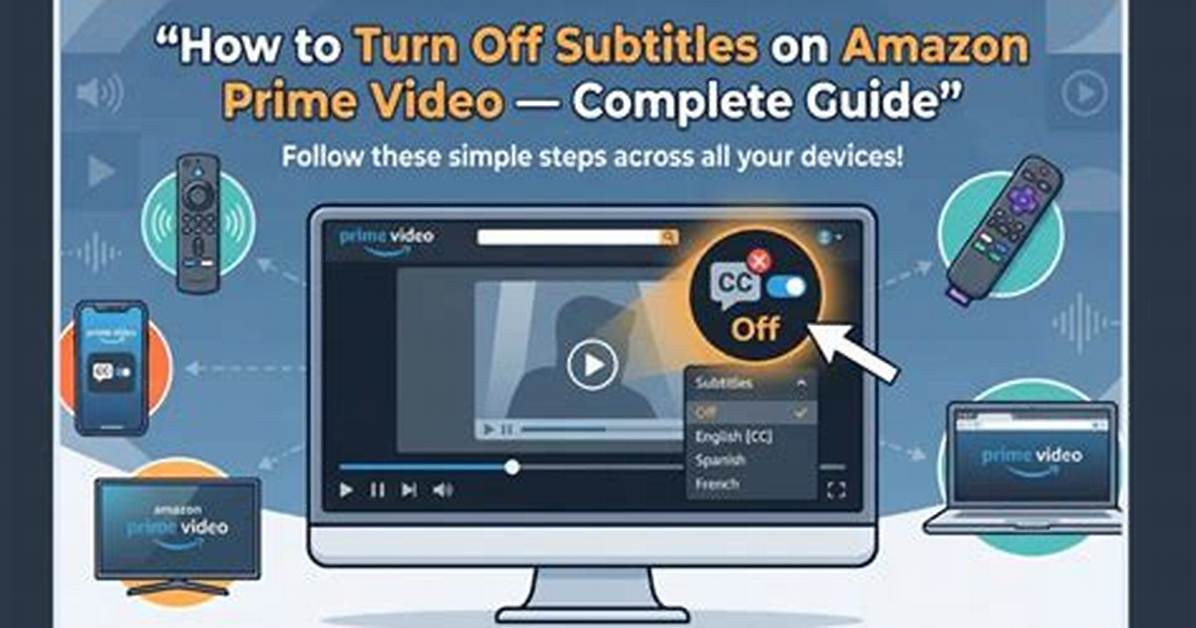
Subtitles are great. They help viewers follow along with the dialogue in films and TV shows that are in a language that they don't understand, allowing us to enjoy content from all over the world. And let's be honest, subtitles can also come in handy for situations like quiet late-night viewing or following the play-by-play from sports commentators on TVs in noisy bars.
But sometimes they can be annoying if you don't need or want them when watching Amazon Prime Video. Maybe someone in your family turned them on, maybe it's a bug, or maybe they're on by default — it doesn't matter — we're here to show you how to turn them off.
Want to know how to turn off subtitles on other streaming services? Check out our guides for how to turn off subtitles on Disney+, and how to turn off subtitles on Netflix, too.
On a mobile device with the Prime Video app
Controlling subtitles on the Prime Video app is particularly easy and a great place to start if captioning keeps turning on, especially if you are using a mobile device. While the design and interface may differ slightly on other platforms, the basic rules and what to look for remain the same, so you should still be able to use this guide to help out. Below, we’ll go over some of the other Prime Video platforms where things are a little different.
Step 1: Open the Amazon Prime Video app and start playing the show of your choice. Once the subtitles appear, immediately pause the video.
Step 2: Look in the upper-right corner of the screen. Here you’ll see several icons for controlling how the video appears. The one in the middle looks like a speech bubble: Select it.
Step 3: A small menu will pop up with two different sections, Subtitles and Audio. Under the Subtitles menu, you will see options for both Off and English CC/Closed Captioning (or other languages you may be watching in). Select Off.
Step 4: If the subtitles are already set to Off, but still appearing — which can happen with this bug sometimes — then switch to Closed Captioning and then switch back to Off.
These steps should remove the subtitles from whatever you are watching. We also suggest that you make sure the Prime Video app is fully updated. If the issue keeps happening, you may want to try deleting the app entirely and reinstalling it to see if this helps. There’s no guarantee this bug or slipup won’t happen again, but if it does, you’ll be ready to deal with it.
With a Fire TV remote
If you have an Amazon Fire device, like a Fire TV Stick or Cube, linked to your TV, then it probably came with a remote. If you’re comfortable using the remote, you can also switch off subtitles this way, which may be easier if you’re in front of a TV.
Step 1: Once again, pause the title you are watching. Now, look at your Fire TV Stick. One of the top right buttons should be three lines, the icon for the settings menu. Press this button.
Step 2: In the menu that appears, select Subtitles.
Step 3: In the subtitles section, which will probably show something like English [CC], use the select button again. This should switch subtitles off. Again, switching subtitles on and off again can often fix subtitle bugs.
Step 4: These steps may differ a little since Fire TV interfaces can vary, but the end goal is still the same. If you can’t find Subtitles, look for a menu called Closed Captions.

